Private Network Access with Portal Tools
A How-To guide with design concepts, screenshots, and explanations.
Using Rich Portal Tools with Private Networks in Azure
There are some compelling, cohesive toolsets in the Azure portal for many services. These offer a rich, full-featured UI for using the service. For example, I am currently learning the Machine Learning Workspace (MLWS) as part of a Data Science certification. I can create an run Jupyter Notebooks and run Automated ML as well as manage all the resources within my workspace. There may be features that are available in the Portal but not in VS Code, but I’m not sure of that yet. MLWS offers integrations from VS Code and both bash and powershell terminals. But doing my standard engineering flow of writing and deploying code and code pipelines doubles the time to complete the learning module exercises, and I am on a deadline to learn this tool!
Private networks still come into play, such as for storage and virtual machines used by the service.
Many Azure environments are secured to not allow public internet access. This makes sense as a significant security layer. Preventing access of any kind from outside an organization’s network reduces your attack surface, especially important when learning the basics of a new system. Disabling public access can be enforced by Azure Policy, but overriding that isn’t always necessary. That disabling is the situation that I am in.
Problems I Saw
CORS and UI Errors When Not On Network
With public network access disabled, I was able to create a MLWS through the Azure
Portal and CLI tools (az and terraform.) But at first I was browsing from my laptop with
my laptop’s public IP address and public DNS resolution, so I would see a message like this.
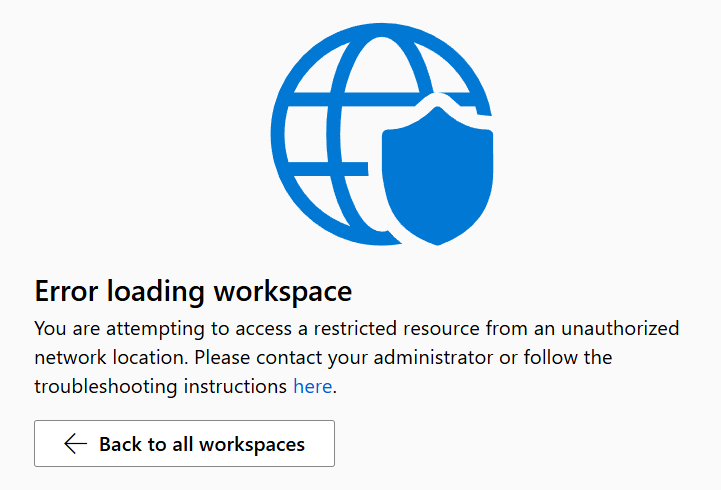
In the developer tools of my browser, in the console log, I would also see CORS
errors. These would show as something like Access to <resource> from origin 'https://ml.azure.com' has been blocked by CORS policy: No 'Access-Control-Allow-Origin' header is present on the requested resource.
But there is no way to control headers from these out of the box services.
Private Network Access Errors
With private endpoints (PEPs) added, and a few requisite items set up including DNS in Azure and using a VPN to have an IP address internal to my network, I would still see similar errors.
Access to fetch at '[pep url] from origin 'https://ml.azure.com' has been blocked by CORS policy: Permission was denied for this request to access the 'local' address space.
Researching this item, I found this to be known as a Private Network Access or PNA error. Our browsers are making sure that public websites aren’t able to exploit services running in a private space. Formerly, this behavior could be toggled off but that doesn’t seem to be the case in Chrome, Edge or Firefox browsers currently.
What Was Really Happening and the Solution
- MLWS was deployed successfully and showed as healthy in the Azure Portal.
- Private DNS Zones were created for
privatelink.blob.core.windows.net,privatelink.vaultcore.azure.net,privatelink.api.azureml.msandprivatelink.notebooks.azure.net. There were others too as required by MLWS but this list is getting long and I have miles to go before I sleep. See a Terraform variable reference below the Local Network Setting screenshot. (And look up Robert Frost if the “miles to go” reference is intriguing!) - The DNS Zones were linked to the virtual network in which the Private Endpoints were to be deployed.
- Private endpoints were created for
blobstorage resources inprivatelink.blob.core.windows.net,keyvaultresources inprivatelink.vaultcore.azure.net,amlapiresources inprivatelink.api.azureml.msandamlnotebooksresources inprivatelink.notebooks.azure.net. Like with Private DNS Zones, there are a couple more that you’ll need to create. See the Terraform snippet to see which I did. - An Azure Private DNS Resolver was created with an internal inbound address on the VNet.
- To simulate an on-premise environment, an Azure Site to Site (S2S) VPN was deployed in one of my home networks with split-routing.
- DNS in that home network was also configured to hit the Azure DNS Resolver before hitting the default DNS from my ISP, for traffic routed through it only.
- My browser popped up a question: “allow this site to discover resources on your local network?” Story below, but answer yes on this one!
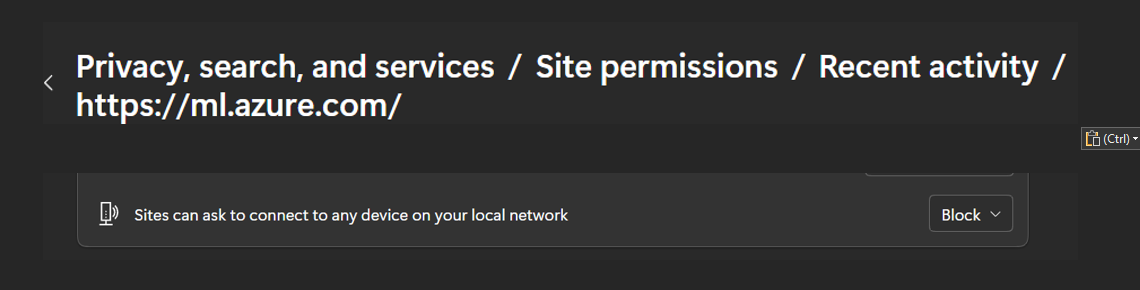
The “site discovery” browser configuration was the final piece for me. You see, I had answered “hell no” to that when it first came up weeks ago, and forgot all about it. Why would I want any remote site discovering resources on my local network? But it looks like it doesn’t actually mean “discover” in an active, probing sense, and I probably need a therapist to help me trust more. (Kidding aside, I find necessary this level of paranoia in today’s cyber world!) In my exact scenario, my local network is the network where the MLWS Private Endpoint lives. Oops. To set this (in Edge) assuming you answered wrong the first time, here’s a screenshot. Change “Blocked” to “Allow”.
Here is a Terraform block that was used in a for loop for creating Private DNS Zones as well as Private Endpoint subresources. Private Zone is the key and the PEP subresource is the value in this map.
private_dns_zones = {
  "privatelink.blob.core.windows.net"  = "blob"
  "privatelink.dfs.core.windows.net"   = "dfs"
  "privatelink.file.core.windows.net"  = "file"
  "privatelink.queue.core.windows.net" = "queue"
  "privatelink.table.core.windows.net" = "table"
  "privatelink.vaultcore.azure.net"    = "keyvault"
  "privatelink.api.azureml.ms"         = "amlapi"
  "privatelink.notebooks.azure.net"    = "amlnotebooks",
  "privatelink.aiservices.azure.com"   = "aiservices",
}
DNS with PEP
Managing DNS configurations with PEP is an important key. Not only does PEP rely on network routing, firewall rules, and network security groups to allow access to the private endpoint, but the name has to resolve to a private IP address. Red flag if you see a public IP address!
What Must Be True: DNS Configuration
Examples to follow.
- Private DNS Zones for each PEP resource type created and linked to every VNet that needs to resolve the IP address. This is to hold the A records. (An A Record maps a hostname to an IP.)
- Resources outside of one of those VNets on the on-premise or other owned network must also be able to resolve the PEP hostname to a private IP address. Your ISP will resolve it to a public IP because the record is only in your VNet, not exposed to the public Internet. Your on-premise DNS server may also kick the request up the chain to the ISP if you don’t have zone forwarding (preferred) or duplicated (works, but … duplicate).
- These private resources outside of Azure must also use an Azure resolver (or similar) to resolve the base resource’s hostname to the IP address of the PEP.
In PowerShell, we can see these examples to illustrate the workings of DNS for PEP. Compare how the configured versus misconfigured shows.
Example when configured correctly
See how the base resource’s hostname resolves to a “CNAME” (Canonical Name) record? This is how Azure helps configure and navigate to the protected resource. That base resource always resolves to a CNAME. Sometimes it will resolve to a PEP and an internal IP address, and sometimes to a public IP. In mixed mode, you get confusion and errors (see next example.)
PS C:\> resolve-dnsname abc123.file.core.windows.net

Name                           Type   TTL   Section    NameHost
----                           ----   ---   -------    --------
abc123.file.core.windows.net CNAME  60    Answer     abc123.privatelink.file.core.windows.net

Name       : abc123.privatelink.file.core.windows.net
QueryType  : A
TTL        : 10
Section    : Answer
IP4Address : 10.0.4.5
Example when misconfigured
Note that this misconfigured section has two CNAME records, which confuses things. If public network is disabled, what good is a public IP address? If you are seeing that, it’s a red flag that your system is misconfigured from the perspecitve of the user of the PEP. IP Address changed because who knows.
PS C:\> resolve-dnsname abc123.file.core.windows.net

Name                           Type   TTL   Section    NameHost
----                           ----   ---   -------    --------
abc123.file.core.windows.net CNAME  60    Answer     abc123.privatelink.file.core.windows.net
abc123.privatelink.file.core.windows.net CNAME  60    Answer     file.abc123.store.core.windows.net

Name       : file.abc123.store.core.windows.net
QueryType  : A
TTL        : 1800
Section    : Answer
IP4Address : 99.60.77.108
Conclusion
We covered a lot of ground. Reach out if you want more details on how these solution elements were all created and wired up. And I may blog about them for my own edification anyway.
We covered:
- Correctly configuring DNS in multiple places to make sure your PEP hostname resolves correctly
- Configuring your browser to get past the Private Network Access error (PNA error)
- Using a VPN to access resources in a private vnet
Feel free to DM me on LinkedIn as my current blogging platform isn’t very interactive.